How to Connect Anker Bluetooth Speaker? Tips for a Rock-Solid Connection
Connecting your Anker Bluetooth speaker is a quick and simple process that takes less than a minute. By following a few easy steps from turning on pairing mode to selecting the device in your settings you will be enjoying high-quality sound on any gadget in your home.
So, you just unboxed your shiny new Anker Bluetooth speaker, or maybe you have had one for a while and just upgraded your phone. It is a great piece of gear, right? The sound quality is fantastic, the battery life is top-tier, and the design looks sharp on any desk or shelf. But now, you need to get the music playing. If you are wondering how to connect Anker Bluetooth speaker devices, you are definitely in the right place.
In this guide, I am going to walk you through the entire process. We will cover everything from the initial handshake between your devices to troubleshooting those rare, annoying moments when things just do not want to sync up. Whether you are using a sleek smartphone, a powerful laptop, or even a smart home hub, we will get your audio flowing in no time at all. Let us dive in and get that sound pumping.
Key Takeaways
- Pairing Mode: Always ensure your Anker speaker is in pairing mode, usually indicated by a flashing blue light.
- Compatibility: Anker speakers are designed to work seamlessly with both iOS, Android, Windows, and macOS systems.
- Distance Matters: Keep your playback device within three feet of the speaker during the initial pairing process for the best connection.
- Resetting: If you face connectivity issues, performing a quick factory reset often solves the problem instantly.
- Firmware Updates: Check the Anker app regularly to ensure your speaker has the latest software for stable connections.
Understanding the Basics of Anker Bluetooth Pairing
Before we jump into the buttons and settings, let us talk about the “why” and “how” of Bluetooth. At its core, pairing is just two devices talking to each other through invisible radio waves. Anker has made this process incredibly user-friendly over the years. Most modern Anker Soundcore models use a dedicated Bluetooth button to trigger the search mode.
What is Pairing Mode?
Think of pairing mode as the speaker shouting out into the room, “Hey, is there a phone or computer nearby that wants to play some music?” When the speaker is in this mode, it is discoverable by other devices. You will almost always know the speaker is ready to pair because the Bluetooth indicator light will start flashing blue rapidly. If it is solid blue, it is already connected to something else. If it is off, it is sleeping.
The Importance of Being Discoverable
If your speaker is already connected to your old tablet, your phone might not be able to “see” it. This is a common point of confusion. Bluetooth connections are often one-to-one. If you are struggling to find the speaker on your list, make sure it is not currently linked to another device in the next room. Turning off Bluetooth on other nearby gadgets is a pro tip that saves a lot of frustration.
How to Connect Anker Bluetooth Speaker to Smartphones?
Connecting your Anker speaker to your smartphone is the most common use case. Whether you are rocking an iPhone or the latest Android device, the steps are remarkably similar and very intuitive.
Visual guide about How to Connect Anker Bluetooth Speaker
Image source: i.ytimg.com
Steps for Android Devices
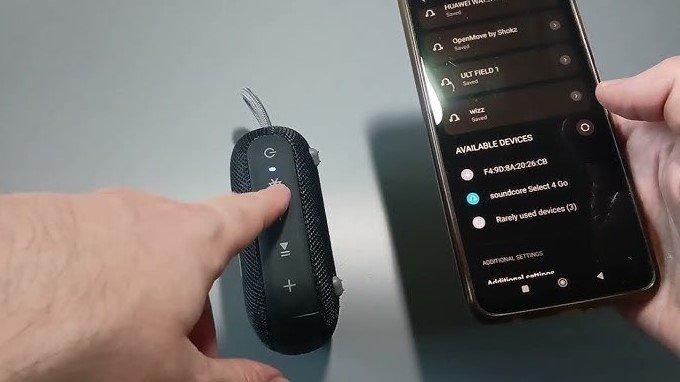
First, turn on your speaker and press the Bluetooth button until the light flashes. Open your phone settings and tap on “Connected devices” or “Bluetooth.” Tap “Pair new device” and wait for your speaker’s model name to appear in the list. Tap it, confirm the pairing request, and you are done. The light on the speaker will turn solid blue, letting you know it is ready for your favorite playlist.
Steps for iPhones and iPads
On your Apple device, head to the Settings app and tap on the Bluetooth menu. Ensure the Bluetooth toggle is turned on. Look at the bottom of the screen under “Other Devices.” As soon as your speaker is in pairing mode, its name should pop up there. Just tap the name, and your iPhone will do the rest. Apple devices are usually very quick to handshake with Anker hardware, so this should take no more than a few seconds.
Connecting to Computers and Laptops
Maybe you want to use your Anker speaker to improve the audio quality of your zoom calls or to listen to music while you work on your laptop. While the phone setup is easy, computers have a few extra menus to navigate.
Setting Up on Windows PCs
Go to your Windows taskbar and click on the Bluetooth icon. If you do not see it, search for “Bluetooth and other devices settings” in the Start menu. Click “Add device” and select “Bluetooth.” Your computer will start scanning. Once your Anker speaker appears, click it. Windows might ask for a code, though most modern speakers bypass this. Once connected, make sure your sound output is set to the speaker by clicking the speaker icon in your system tray.
Linking to macOS Systems
On a Mac, it is just as simple. Open System Settings and click on Bluetooth. Ensure Bluetooth is toggled to “On.” Put your Anker speaker in pairing mode. When you see the speaker listed under “Nearby Devices,” click “Connect.” Your Mac will remember this device, so next time you turn the speaker on, it should automatically reconnect without you needing to do anything at all.
Tips for a Rock-Solid Connection
Sometimes, the connection might drop or sound a bit choppy. This is usually due to interference or distance issues. Bluetooth is a short-range technology, so keep your devices relatively close, especially when you are setting them up for the first time.
Managing Physical Obstructions
Bluetooth signals are blocked by walls, large metal objects, and even thick furniture. If your speaker is in the kitchen and your phone is in the bedroom, the connection might struggle. Try to keep a clear line of sight, or at least keep the devices in the same room. Avoid placing your speaker inside a metal cabinet, as this acts like a shield that kills the signal.
Handling Signal Interference
Did you know that Wi-Fi routers and microwaves can interfere with Bluetooth? They operate on similar frequencies. If your audio starts cutting out, try moving the speaker a few feet away from your router. It sounds strange, but it really does make a massive difference in signal stability. Keeping your firmware updated via the Soundcore app also helps your speaker manage connections better in crowded digital environments.
Troubleshooting Common Issues
Even the best tech has its bad days. If your Anker speaker is refusing to pair, do not panic. Most issues are solved in less than two minutes by following a simple troubleshooting checklist.
When the Speaker Won’t Show Up
If your device does not see the speaker, the first thing to do is turn the speaker off and back on again. If that does not work, “forget” the device in your phone’s Bluetooth settings if it was previously paired. Then, restart your phone and put the speaker back into pairing mode. It is like a fresh start for your connection.
Performing a Factory Reset
If you have tried everything and it still won’t connect, a factory reset is your best friend. Look at your Anker speaker’s manual or the bottom of the device. Most models require you to hold the Power button and the Volume Up or Play button simultaneously for several seconds. The lights will blink, indicating the reset. Once it reboots, it will be just like the day you bought it, ready for a clean pairing process.
Using the Soundcore App for Better Control
Anker’s Soundcore app is more than just a place to update firmware. It is a powerful tool to manage your connections. Once you have successfully paired your speaker, download the app from the App Store or Google Play.
Managing Multiple Devices
Some premium Anker speakers allow for “Multipoint Connection.” This means the speaker can stay connected to your phone and your laptop at the same time. You can listen to music on one and switch to a call on the other without having to disconnect and reconnect manually. The app makes managing these priority connections much easier.
Customizing Your Sound
Beyond connectivity, the app lets you adjust the EQ. If you find the bass is too heavy or you want clearer vocals for a podcast, you can tweak these settings on the fly. Having this level of control ensures your audio experience is perfectly tailored to your room and your ears.
Conclusion
Learning how to connect Anker Bluetooth speaker devices is a skill that pays off every single day. By understanding the basics of pairing mode, keeping your firmware updated, and knowing how to troubleshoot simple signal issues, you ensure that your music is always ready when you are. Remember, these devices are designed to make your life easier and your audio experience better.
Do not be afraid to experiment with your settings or use the app to get the most out of your hardware. Whether you are hosting a party, working from home, or just relaxing on the weekend, your Anker speaker is a reliable companion. Now that you have the knowledge, go ahead and get everything synced up—your favorite songs are waiting to be heard.
Frequently Asked Questions
Why won’t my Anker speaker show up in my phone’s Bluetooth list?
Ensure the speaker is currently in pairing mode, indicated by a flashing blue light. If it is not flashing, it may already be connected to another device nearby, so try turning off Bluetooth on other devices.
Can I connect my Anker speaker to two devices at once?
Yes, many newer Anker Soundcore models support multipoint connection. Check your specific manual or the Soundcore app to see if your model supports this feature and how to toggle it on.
How do I reset my Anker Bluetooth speaker if it keeps disconnecting?
You can usually perform a factory reset by holding down the power button and the volume up button simultaneously for about 5 to 10 seconds. Check your specific model’s manual for the exact button combination.
Do I need an app to use my Anker Bluetooth speaker?
No, the speaker will function perfectly as a standard Bluetooth device without any app. However, the Soundcore app is highly recommended for firmware updates and EQ adjustments.
How far away can my phone be from the Anker speaker?
Most Anker speakers have a reliable range of about 30 to 50 feet in an open area. Physical walls and other wireless interference can significantly reduce this range, so keeping them closer is always better.
Will my Anker speaker automatically connect to my phone next time?
Yes, once you have successfully paired your devices the first time, your speaker will automatically attempt to reconnect to the last used device whenever you turn it on.