How to Connect Anker Keyboard to Ipad? Maintaining Your Keyboard in 2026
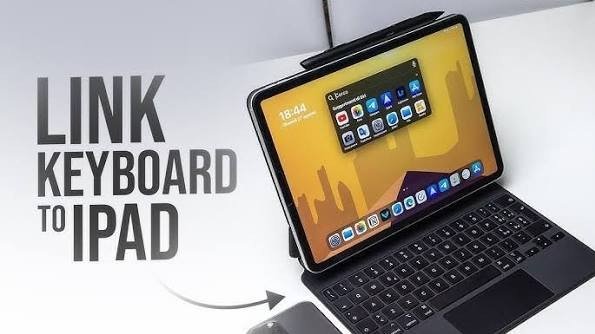
Connecting your Anker keyboard to an iPad is a simple process that takes only a few minutes. By following our easy guide, you will master the Bluetooth pairing steps, troubleshoot common connection hurdles, and learn how to optimize your iPad typing experience for maximum productivity.
So, you have picked up an Anker keyboard for your iPad. Great choice! Anker is known for making super reliable, affordable, and sleek accessories that make typing on a tablet feel like using a real laptop. Whether you are a student writing essays, a professional firing off emails, or a creative person taking notes, a physical keyboard changes everything. You can finally stop squinting at the screen while your thumbs get tired from tapping on glass.
In 2026, we have more iPad options than ever, and fortunately, the way we connect gear remains beautifully simple. However, sometimes tech can be a little finicky. Maybe you are staring at a blinking light, or maybe your iPad just won’t “see” the keyboard. Do not worry! We have all been there. This guide will walk you through exactly how to connect an Anker keyboard to iPad so you can get back to what matters most.
Key Takeaways
- Bluetooth Pairing: Always ensure your Anker keyboard is in pairing mode before scanning on your iPad.
- Power Source: Verify that your keyboard is fully charged or has fresh batteries to maintain a stable connection.
- Device Compatibility: Check your iPad settings to ensure Bluetooth is toggled on and discoverable.
- Troubleshooting: If the connection fails, use the “Forget Device” option and restart your iPad to clear cache errors.
- Keyboard Shortcuts: Learning built-in iPadOS shortcuts can turn your Anker keyboard into a powerhouse tool.
- Maintenance: Keep your keyboard firmware updated if the specific Anker model provides a companion app for 2026 standards.
Step-by-Step: The Initial Bluetooth Setup
The magic that makes this happen is Bluetooth. Because your Anker keyboard uses Bluetooth, you do not need any messy cables or adapters. It is a clean, wireless setup that keeps your desk looking tidy. Before we start, make sure your iPad has enough battery and that your keyboard is nearby.
Step 1: Prep Your Keyboard
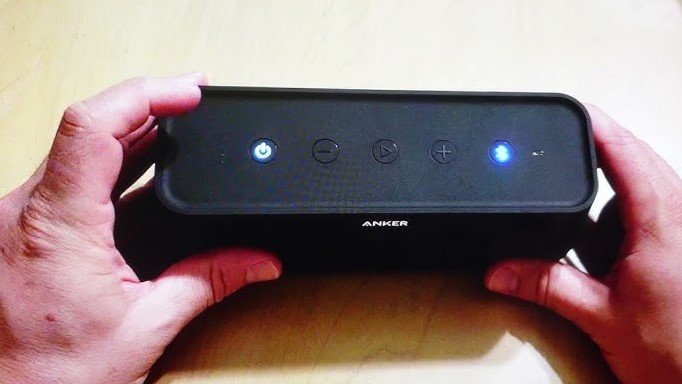
First things first, wake your keyboard up. If your Anker model has an on/off switch, flick it to the “on” position. Look for a status light. Most Anker keyboards have a “Connect” or “Bluetooth” button. Press and hold this button for three seconds. You will usually see a blue light start to blink. This is the keyboard telling your iPad, “Hey, I am ready to talk to you!”
Step 2: Activate iPad Bluetooth
Now, grab your iPad. Go to your “Settings” app. Tap on the “Bluetooth” tab. You will see a toggle switch at the top. If it is gray, tap it to make it green. Your iPad will now start looking for nearby devices. You might see a list of things like your headphones or a friend’s phone. Scroll down to the “Other Devices” section.
Step 3: Pairing the Devices
Once the iPad finds your Anker keyboard, its name will pop up in the list. It might say “Anker A7726” or something similar. Tap that name. Your iPad might ask you to type a code on the keyboard. If it does, type those numbers and hit “Enter” or “Return.” Sometimes, it just connects instantly without a code. Once you see the word “Connected” next to the keyboard name, you are officially in business!
Troubleshooting Common Connection Issues
Sometimes, tech doesn’t go quite as planned. If you are trying to learn how to connect an Anker keyboard to iPad and it just isn’t showing up, take a deep breath. It is almost always a simple fix. Most problems are caused by old cache files or weak battery levels.
Checking Your Battery Levels
Anker keyboards are famous for their long battery life, but they do eventually run out of juice. If you have been using yours for months, check if it needs a charge. A keyboard with low power might have trouble broadcasting a strong enough signal for your iPad to pick up. Plug it into a wall charger for an hour and try the pairing process again.
The “Forget Device” Trick
If your iPad shows the keyboard as “Connected” but you can’t actually type anything, the software might be confused. Go back to your Bluetooth settings and tap the little blue “i” icon next to your Anker keyboard. Choose “Forget This Device.” Turn your iPad’s Bluetooth off and back on again. Then, start the pairing process from the very beginning. This forces the iPad to create a fresh, clean connection.
Optimizing Your Typing Experience
Now that you know how to connect an Anker keyboard to iPad, you should make sure it feels right. Everyone types at different speeds and with different preferences. You can actually customize how the iPad interacts with your new keyboard in the Settings menu.
Adjusting Keyboard Speed
Do you feel like the keys are too sensitive? Or maybe not sensitive enough? Head over to “Settings,” then “General,” then “Keyboard.” Here, you can adjust “Key Repeat” settings. You can make it so that letters appear faster or slower when you hold down a key. You can also adjust the “Full Keyboard Access” settings to navigate your iPad menus without ever touching the screen.
Understanding Keyboard Shortcuts
One of the best parts about using an Anker keyboard is the ability to use keyboard shortcuts. You already know the basics like Command + C for copy and Command + V for paste. But did you know you can use Command + Tab to switch between your open apps? It makes the iPad feel much more like a desktop computer. Spend a few minutes playing around with these combinations to speed up your workflow.
Maintaining Your Keyboard in 2026
Since we are in 2026, technology is more integrated than ever. To get the most out of your keyboard, treat it well. Keep it clean by wiping it down with a damp cloth—never use harsh chemicals! Also, keep it away from liquids.
Because these keyboards are portable, it is easy to toss them into a backpack. If you do that, consider a small protective sleeve to keep the keys from getting stuck or damaged while you are on the go.
Firmware and Software Updates
While most Anker keyboards are plug-and-play, some newer models might have updates available through the Anker app or the App Store. If you ever find that your keyboard is lagging or that certain keys aren’t working right after an iPadOS update, check for firmware updates. Keeping things up to date ensures your gear works smoothly with the latest features Apple releases.
Why Anker and iPad are a Great Match
Why do so many people choose Anker for their iPad? It comes down to balance. Apple’s own keyboards are great, but they can be quite pricey. Anker offers a similar, high-quality experience for a fraction of the cost.
The keys have a nice, tactile “click” that feels satisfying to press. This is really important for anyone who types for long periods, like students writing papers or bloggers working on their next big post.
Furthermore, the portability is unmatched. Most Anker keyboards are very thin and light. You can easily slip one into a folder or a small bag. When you arrive at a coffee shop, you can set up your portable office in under thirty seconds. Understanding how to connect an Anker keyboard to iPad effectively makes you a mobile professional ready to tackle any task at any time.
Conclusion
Learning how to connect an Anker keyboard to iPad is a skill that opens up a whole new world of productivity. By taking the time to pair your devices correctly and understanding how to troubleshoot simple hiccups, you ensure that your setup is ready whenever inspiration strikes.
Remember, keep your Bluetooth turned on, keep your battery charged, and don’t be afraid to dive into the settings to customize your experience. Technology is meant to make our lives easier, and a good keyboard is one of the best ways to do exactly that.
You are now equipped with the knowledge to make your iPad work harder for you. Whether you are typing up a storm or just checking your emails, your Anker keyboard will be a faithful companion for your digital adventures. Happy typing!
Frequently Asked Questions
Can I connect my Anker keyboard to multiple devices?
Some Anker keyboard models support multi-pairing, which allows you to switch between devices like your phone, tablet, and laptop. Check your specific manual to see if your keyboard has dedicated buttons (often labeled 1, 2, or 3) for multi-device switching.
What should I do if my Anker keyboard is not typing the correct characters?
This usually means your iPad has the wrong keyboard language or region settings enabled. Go to Settings, then General, then Keyboard, and verify that the “Hardware Keyboard” layout is set to your preferred language, such as U.S. English.
How often do I need to charge my Anker keyboard?
Most Anker keyboards have an incredibly long battery life that can last for months on a single charge. You will typically only need to charge it when the status light begins to flash red or the connection becomes unstable.
Does the Anker keyboard work with all iPad models?
Yes, your Anker keyboard should work with any iPad model that supports Bluetooth, which includes every iPad version released in the last decade. It works across iPadOS versions without needing specific driver installations.
Can I use the Anker keyboard while it is charging?
In most cases, yes, you can continue to use your Anker keyboard while it is plugged into a power source. This is a great feature if you suddenly run out of battery during an important work session.
Why does my iPad keyboard keep disconnecting?
Intermittent connections are often caused by other nearby Bluetooth devices causing interference or a low battery. Try turning off other Bluetooth devices in the room and ensuring your keyboard is fully charged to maintain a stable link.