How to Reset Anker Soundcore? Maintenance Tips to Avoid Future Resets
Resetting your Anker Soundcore device is the fastest way to resolve persistent Bluetooth connectivity issues, audio imbalances, or pairing glitches. Whether you own earbuds, headphones, or a portable speaker, our comprehensive guide walks you through the specific button combinations required to restore your device to its original factory settings.
We have all been there. You are ready to listen to your favorite playlist, but your headphones refuse to pair, or only one side is playing audio. In 2026, our devices are smarter than ever, but technology still has its bad days. If you find yourself frustrated, learning how to reset Anker Soundcore gear is the ultimate troubleshooting superpower.
Resetting your device is not a sign of defeat. It is simply a way to clear the “digital cobwebs” that build up over time. Whether you are using the latest Liberty series earbuds or a robust Motion speaker, a factory reset wipes the slate clean. It deletes old pairing information and recalibrates the internal software. In this guide, we will walk you through every step you need to get your audio back to perfect harmony.
Key Takeaways
- Universal Fix: Knowing how to reset Anker Soundcore devices often solves 90% of common technical glitches without needing technical support.
- Battery Levels Matter: Always ensure your device is charged to at least 50% before performing a reset to avoid power-down interruptions.
- Forget the Device: A factory reset must be paired with “forgetting” the device in your phone’s Bluetooth settings to ensure a clean connection.
- Consistency is Key: Different models require specific button holding durations, typically between 5 and 10 seconds.
- Firmware Updates: After a reset, check the Soundcore app for any pending firmware updates to keep your hardware running optimally in 2026.
Understanding the Basics of a Hard Reset
Before we dive into the specific buttons and sequences, let us talk about what a reset actually does. When you perform a factory reset, you are telling the hardware to ignore its current connection history. This is different from a simple power cycle (turning it off and on again).
Why Does My Device Need a Reset?
There are several reasons why your Anker Soundcore product might act up. Perhaps you switched phones recently and the Bluetooth signal is getting confused. Maybe you moved from an office environment with heavy interference to a quiet room. Sometimes, the internal software just gets stuck in a loop. By resetting, you force the device to return to its “out-of-the-box” state, effectively bypassing these logic errors.
Preparation Before You Start
Before you start pushing buttons, take a deep breath. First, ensure your device is adequately charged. A reset requires the internal chip to process a lot of data quickly; if the battery dies midway, you might trigger an error state. Aim for at least a 50% charge. Second, make sure you have your phone or tablet nearby, ready to search for new Bluetooth signals.
How to Reset Anker Soundcore Earbuds
Earbuds are the most popular devices in the Soundcore lineup. Because they have to sync with each other and your phone simultaneously, they are the most prone to connection imbalances. Learning how to reset Anker Soundcore earbuds ensures that both the left and right sides talk to each other correctly.
The Standard Liberty Series Reset
Most Liberty models follow a similar pattern. Place both earbuds into the charging case and leave the lid open. Find the button on the back of the case or the touch-sensitive areas on the buds themselves. For most models, you will press and hold the button (or touch areas) for about 10 seconds. You are looking for the LED indicators to flash red or white three times. This signal confirms the reset is complete.
Addressing Single-Bud Pairing Issues
If only one earbud is connecting, it means they have lost their “master-slave” sync. To fix this, reset them using the method above, then remove them from the case simultaneously. They should blink rapidly, then slow down, indicating they have found each other. Only after they sync with each other should you open your phone’s Bluetooth menu to connect.
Resetting Anker Soundcore Bluetooth Speakers
Speakers are a bit different because they usually involve larger hardware and fewer complex syncing steps. However, if your party speaker is failing to output sound or refusing to enter pairing mode, a hard reset is your best bet for a quick fix.
The Classic Motion and Flare Reset
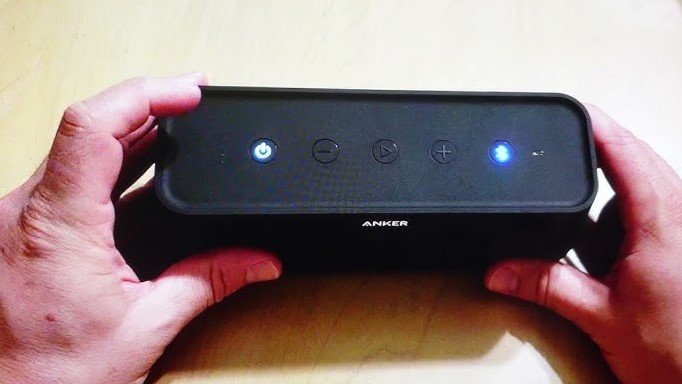
For many portable speakers like the Motion or Flare series, the process is straightforward. Locate the “Bluetooth” button and the “Volume Up” button. Press and hold these two buttons simultaneously for about 5 to 8 seconds. You will usually hear an audible chime or see the LED ring flash, signaling that the device has restarted its memory.
Handling “Ghost” Connections
Sometimes a speaker remembers a connection from a neighbor or a previous roommate’s device. If the speaker refuses to pair with your phone because it is “auto-connecting” to something else, perform the reset. This clears all prior memory, effectively “locking out” older devices that might be trying to hog the signal.
The Essential Step: Clearing Your Phone’s Cache
Many users successfully reset their headphones but forget the second half of the equation. If you reset the hardware but your phone still remembers the old pairing profile, you will face errors. This is a common trap in 2026 tech.
How to “Forget” the Device
Go into your phone’s Bluetooth settings. Look for your Soundcore device in the list of “Previously Connected” or “My Devices.” Tap the “i” icon or the gear icon and select “Forget This Device” or “Unpair.” Do this for every phone or tablet that has ever been connected to the headphones. This ensures that when you restart the pairing process, your phone treats the Soundcore unit as a brand-new device.
Re-pairing After the Reset
Once the device is forgotten, turn your phone’s Bluetooth off and back on. Put your Soundcore device into pairing mode (usually signified by a flashing light). Select the device name from the list. By doing this, you create a fresh handshake between the devices, which is much more stable than an old, corrupted connection.
Troubleshooting Common Post-Reset Problems
Even after knowing how to reset Anker Soundcore devices, you might hit a snag. What if the lights do not blink? What if the sound is still muffled? Here are some advanced tips to help you move forward.
The Firmware Factor
In 2026, firmware is everything. Open the official Soundcore app on your smartphone. Even if the device was acting up, the app might be able to see it after a reset. Check for any “Firmware Updates.” Often, these updates include patches that prevent the very issues that forced you to reset in the first place.
Dealing with Hardware Fatigue
If you have reset your device three times and the audio quality remains poor or the connection drops, it might be a hardware issue. Check the charging pins on your buds or the charging port on your speaker. Sometimes a simple cleaning with a dry cotton swab is enough to fix a charging issue that looks like a connection issue.
Maintenance Tips to Avoid Future Resets
Nobody wants to spend their weekend troubleshooting tech. By following a few best practices, you can minimize the need to reset your Anker Soundcore equipment in the future.
- Keep the App Updated: The Soundcore app is your best friend for long-term health.
- Avoid Extreme Temperatures: Electronics hate the heat and the cold. Store your gear in a stable, room-temperature environment.
- Regular Charging Cycles: Don’t let your batteries sit at 0% for weeks at a time; this degrades the internal management chip.
- Consistent Cleanup: A little bit of dust can cause connection issues in charging cases. Wipe them down once a month.
In conclusion, resetting your Anker Soundcore device is a simple, effective way to reclaim your audio experience. Whether you are dealing with a silent speaker or a moody earbud, the power to fix it is in your hands.
By clearing the pairing cache, performing the correct button sequence, and keeping your firmware current, you ensure that your music and calls remain crystal clear. Keep this guide handy, stay patient, and enjoy the high-quality sound you deserve!
Frequently Asked Questions
Do I lose my sound settings after a reset?
Yes, a factory reset wipes all custom EQ settings and pairing history. However, if you use the Soundcore app, your saved profiles may be restored once you reconnect the device to your account.
How long should I hold the reset button?
For most Anker devices, you should hold the reset button or touch area for 5 to 10 seconds. You will usually see a flashing light or hear a chime to confirm the reset was successful.
Will a reset fix a charging issue?
A reset generally fixes software-related connection issues, not hardware charging problems. If your device isn’t charging, check the pins for debris or try a different charging cable before resetting.
Why is only one earbud working after the reset?
This happens when the earbuds fail to “sync” with each other during the pairing process. Place them back in the case, forget the device on your phone, and try the reset procedure one more time.
How often should I reset my Soundcore device?
You should only reset your device when you experience persistent technical issues. It is not a necessary maintenance step for healthy devices.
Can I reset without the charging case?
For most earbud models, you need the charging case to perform a hard reset. If you have lost your case, please contact Anker support to see if your specific model supports an alternative reset method.