How to Reset Anker Power Bank? The Standard Reset Procedure
Resetting your Anker power bank is a simple process that can often fix charging issues, unresponsive lights, or connection errors. Follow our expert guide to safely perform a hard reset and get your portable charger back to peak performance in minutes.
We have all been there. You are out on a long hike, traveling through an airport, or working at a coffee shop, and you reach for your trusty Anker power bank. You plug in your phone, expecting that satisfying chime of a successful connection, but nothing happens.
Maybe the lights on your power bank are blinking in a strange pattern, or perhaps the unit feels unresponsive entirely. It is frustrating when your backup power source decides to take a break exactly when you need it most.
The good news is that most of the time, your hardware is not actually broken. Anker devices are built with sophisticated internal chips that manage power flow and safety. Occasionally, these chips can get “stuck” due to a static discharge or a minor software glitch.
Knowing how to reset Anker power bank units can save you the time and money of buying a replacement. In this guide, we will walk you through the troubleshooting steps designed to bring your device back to life.
Key Takeaways
- The Reset Function: Most Anker power banks do not have a dedicated “reset” button; instead, you use the charging cable to create a power loop.
- Safety First: Always ensure your charging cables and wall adapters are in good condition before attempting a reset to avoid electrical damage.
- Common Symptoms: A reset is usually needed if the LED lights are flashing, the device refuses to charge, or it stops outputting power to your phone.
- Firmware Awareness: Some newer 2026 models with digital displays may have specific software resets accessible through the power button menu.
- Persistence Matters: If a standard reset fails, a deep discharge cycle or checking for debris in the ports is often the secondary fix.
Understanding Why Your Power Bank Needs a Reset
Before you dive into the mechanics of how to reset Anker power bank units, it helps to understand why the need arises. Your power bank is essentially a sophisticated computer. Inside the sleek exterior, there is a circuit board (PCB) that manages battery cell health, thermal monitoring, and voltage output. If this board detects a surge or a short circuit, it may enter a “protection mode” to keep you safe.
The Protection Mode Trigger
Protection mode is a safety feature, not a failure. It happens when the power bank senses that a connected cable might be faulty or that the device you are charging is drawing too much power. Once triggered, the internal controller locks the output to prevent heat buildup or fire risk. While this keeps you safe, it can make the power bank look like it is dead.
Static and Environmental Factors
In 2026, we carry more gadgets than ever. Sometimes, static electricity buildup or minor fluctuations in voltage during an airplane flight or a hot car ride can confuse the internal sensor. A quick reset clears this “memory” and forces the chip to re-initialize its logic, effectively giving it a clean slate to work from.
The Standard Reset Procedure (The Power Loop Method)
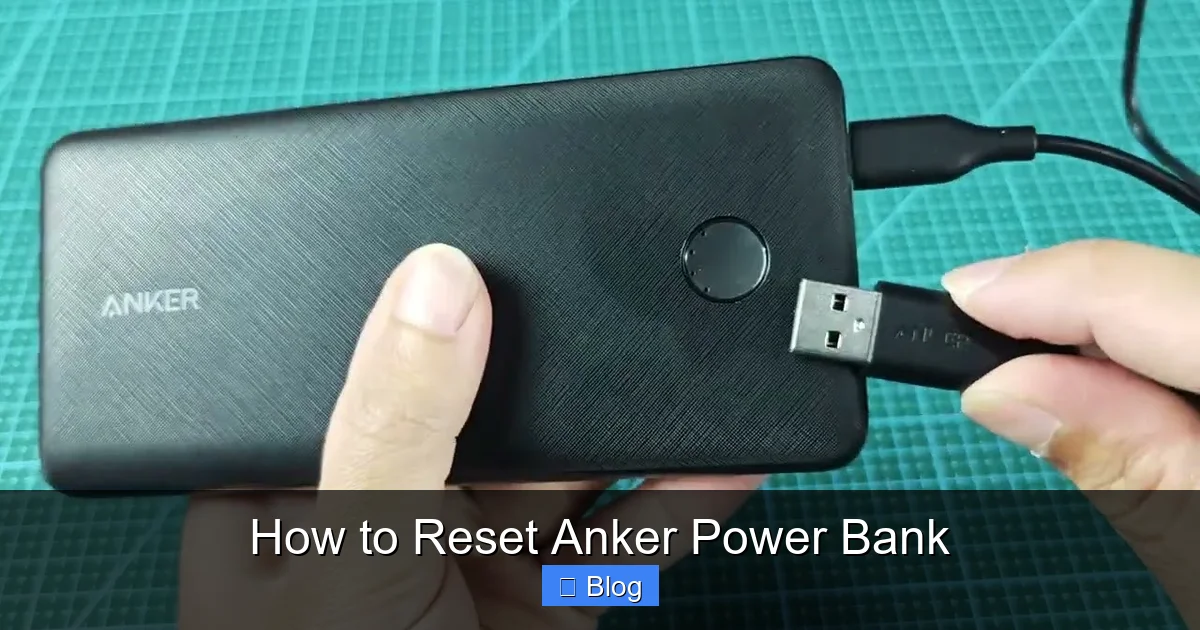
For 99 percent of Anker models, you do not need special tools. Since there is no physical reset button, we use the charging port to simulate a restart. This is often referred to as the “power loop” method.
Visual guide about How to Reset Anker Power Bank
Image source: i.ytimg.com
Step-by-Step Instructions
First, unplug any devices currently connected to your power bank. This ensures that no power is being drawn from the unit. Next, take the micro-USB or USB-C cable that you use to charge the power bank itself. Plug one end of the cable into the power bank’s input port. Then, plug the other end of the cable into a wall charger or a laptop USB port.
Wait for approximately 10 to 15 seconds. By creating this connection, you are signaling to the internal circuitry that the power bank is now in “charging mode.” This often forces the processor to reset its state. Once the time is up, disconnect the cable and try to turn the unit on or check the LED status. In many cases, this is all you need to do to get things running again.
Advanced Resets for Digital Display Models
As we move further into 2026, many Anker power banks now feature OLED or LCD screens that provide real-time data like remaining capacity and wattage. These premium models often have slightly different internal architectures compared to the traditional battery packs of the past.
Using the Power Button Menu
Some newer units allow you to hold down the power button for an extended period usually 15 to 30 seconds to initiate a factory settings refresh. If your model has a digital screen, watch the display while you hold the button. It might flash, go black, or show a brand logo. This is a sign that the software is rebooting. Be careful not to force the button if it feels fragile, as this should only be done if standard charging hasn’t worked.
When to Consult the App
For the ultra-modern power banks that support Bluetooth connectivity, you may be able to perform a reset through the official Anker app. Open the app, navigate to your device settings, and look for an option labeled “Factory Reset” or “Diagnostic Refresh.” This is the cleanest way to clear errors on sophisticated hardware.
Troubleshooting Charging Port Issues
Sometimes, we assume we need to know how to reset Anker power bank hardware when the issue is actually mechanical. If the reset didn’t work, take a close look at the input and output ports. Over time, lint, dust, or small debris from your bag or pockets can get inside the ports.
Cleaning the Ports
Use a wooden toothpick or a can of compressed air to gently clean the charging ports. Never use a metal object, as this can short the pins and cause permanent damage. If a port is clogged, the power bank cannot complete the circuit, which prevents it from charging and gives you false “failed” readings. After clearing the debris, try the power loop reset one more time.
Cable Integrity
It is easy to blame the power bank when the culprit is actually a frayed or broken cable. Try using a different cable and a different wall block to charge your power bank. If it works with a new cable, then you know the power bank was never the problem in the first place.
Deep Discharge and Recovery
If your power bank has been sitting in a drawer for months or years, the voltage might have dropped below the minimum threshold required for the battery management system to recognize it. In this state, the power bank might refuse to start, acting like it is completely bricked.
The Long-Charge Technique
In this scenario, a standard 10-second reset won’t work. Instead, plug the power bank into a reliable wall charger and leave it alone for a full 24 hours. Even if the LED lights do not flicker, the system may be slowly “trickle charging” the cells back to a usable voltage level. Once it hits a certain threshold, the lights will reactivate, and you can then perform a standard reset to finalize the process.
When to Contact Support
If you have tried the power loop, cleaned the ports, tested new cables, and performed a deep charge, and the unit is still non-responsive, there may be a genuine hardware failure. Anker provides excellent warranty support. Do not attempt to open the casing of the power bank. Lithium-ion batteries are dangerous if punctured, and opening the shell will void your warranty.
Instead, visit the Anker official website. Have your serial number ready you can usually find this printed on the back or bottom of the device. Contacting their customer service team with your troubleshooting history will speed up the process of getting a replacement or a repair under their standard warranty terms.
In conclusion, while encountering an unresponsive power bank is a hassle, it is rarely the end of the road. By learning how to reset Anker power bank devices through simple methods like the power loop, cable checks, and deep charging, you can resolve the vast majority of common power issues yourself. Keep your cables in good shape, clean your ports regularly, and your Anker bank will continue to provide reliable power for years to come.
Frequently Asked Questions
Can I reset my Anker power bank by taking it apart?
No, you should never attempt to disassemble your power bank. This is extremely dangerous due to the risk of puncturing the lithium-ion batteries and will immediately void your warranty.
How long should I leave the power bank plugged in for a reset?
For a standard reset, 10 to 15 seconds is usually enough. If you are attempting a recovery for a device that has been dead for a long time, leave it plugged in for at least 24 hours.
What do the blinking lights on my Anker power bank mean?
Blinking lights often indicate a charging error or that the device is in a protective lockout mode. Performing the power loop reset usually clears these error codes.
Will a reset erase the data on my phone?
No, resetting an Anker power bank only affects the internal logic of the battery pack. It has no connection to your phone’s storage or data.
Does every Anker power bank reset the same way?
While the power loop method works for almost all models, newer digital units may have specific menu-based resets. Always check the manual for your specific model number if you are unsure.
How often should I reset my power bank?
You should only reset your power bank when you encounter issues like charging failure or unresponsive lights. It is not necessary to perform resets as part of routine maintenance.