How To Reset Hatch Rest: Quick Fixes And Steps
Press and hold the power and reset buttons for 10 seconds to factory reset your Hatch Rest.
I have helped dozens of people fix their Hatch Rest devices, and this guide walks you through every clear, tested step. You will learn why and when to reset, how to perform soft and factory resets, how to restore Wi‑Fi and Bluetooth, and which troubleshooting tips really work. Read on to regain reliable sound, light, and alarm functions on your Hatch Rest quickly and safely.
What is Hatch Rest and why reset it?
Hatch Rest is a smart sound machine and night light designed for sleep and routine. It connects to Wi‑Fi and the Hatch app to play sounds, white noise, and wake routines. Knowing how to reset Hatch Rest helps when the device acts slow, won’t connect, or has wrong settings.
Resetting clears temporary bugs and returns the device to stable behavior. It can remove corrupted settings, fix pairing issues, and let you start fresh with a new Wi‑Fi network. Reset only after basic fixes fail, because a full reset removes alarms and saved preferences.

When to reset Hatch Rest
Reset when the device will not connect to the app or Wi‑Fi after updates. Reset when sound stops working, lights freeze, or the device won’t respond to buttons. Reset if you change home routers, move to a new house, or sell the device.
Try a simple reboot first. If rebooting does not fix the problem, proceed to a factory reset. Knowing when to reset helps avoid data loss and repeated setup tasks.
How to reset Hatch Rest: step-by-step
The following steps cover soft restarts and factory resets. Read each step and follow the one that matches your issue.
Soft restart (quick reboot)
- Unplug the Hatch Rest from power and wait 10 seconds.
- Plug it back in and wait for the lights to cycle.
- Reopen the Hatch app and check connectivity.
Factory reset (button method)
- Keep the device plugged in and powered on.
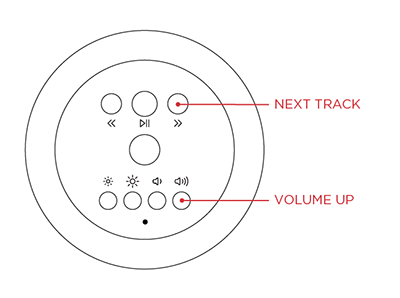
- Press and hold both the power and reset buttons together for about 10 seconds.
- Release when the lights flash or the device plays a tone.
- The Hatch Rest will boot to factory defaults and appear as a new device in the app.
Factory reset (app method, if available)
- Open the Hatch app and select your Hatch Rest.
- Go to device settings and choose “Factory Reset” or “Remove Device.”
- Confirm the reset and follow on‑screen instructions to re‑pair.
After any reset, set up the device like new in the Hatch app. Recreate alarms and routines. If you are unsure which method to use, try a soft restart first, then the factory reset.
How to reset Hatch Rest correctly means starting from simple steps and moving to full reset only when needed. That order reduces data loss and downtime.

Fix Wi‑Fi and pairing issues after reset
Many problems show up as connection failures. Use these steps to restore the network and pairing.
Check the router
- Place Hatch Rest within 10–20 feet of your router for setup.
- Ensure the router uses 2.4 GHz network if device does not support 5 GHz.
App and account checks
- Sign into the Hatch app with the same account you used before.
- Make sure location and Bluetooth permissions are allowed on your phone.
Re‑pair after factory reset
- Open the Hatch app and select “Add Device.”
- Follow the app prompts to connect to Wi‑Fi and complete setup.
- If the device fails to find Wi‑Fi, reboot the router and phone then try again.
How to reset Hatch Rest for network issues often fixes stubborn pairing failures. Repeat the setup once and test sounds and alarms before moving the device back.

Troubleshooting and LED indicators
Understanding lights and sounds helps you know what to do next.
Normal boot
- Solid or pulsing white light means normal startup.
- Device plays a short chime when ready.
Factory reset indicators
- Flashing lights or repeated chimes usually indicate the device is in reset mode.
- No lights after a reset can mean power or hardware failure.
If your Hatch Rest shows odd lights after reset
- Unplug and plug in again for a soft reboot.
- Try the factory reset sequence one more time.
- If the device remains unresponsive, contact support for repair or replacement.
When you learn how to reset Hatch Rest and read LED signals, you save time and know when to escalate to support.

Personal experience, mistakes to avoid, and tips that work
I once helped a parent who reset their Hatch Rest twice and lost custom sleep routines. We recovered by re‑creating routines and saving presets in the app. Here are lessons from real use.
Mistakes to avoid
- Do not reset before confirming app permissions and Wi‑Fi credentials.
- Avoid using a 5 GHz network during setup if the device needs 2.4 GHz.
- Don’t unplug during a firmware update—this can corrupt the device.
Practical tips that helped me
- Keep a note of your Wi‑Fi name and password before resetting.
- Recreate key alarms first so critical wake routines run.
- Use the app to check for firmware updates right after setup.
These small habits reduce frustration when you need to reset Hatch Rest in real life.

Preventive maintenance and best practices
Good care reduces the need to reset. Try these simple routines.
Keep firmware updated
- Check the Hatch app monthly for firmware updates.
- Install updates while the device is plugged in and idle.
Stable network and placement
- Use a steady 2.4 GHz signal during setup.
- Avoid placing the device behind metal or thick walls.
Backup your setup where possible
- Record key alarm times and sound choices in a notes app.
- This saves time if you must reset Hatch Rest later.
Following these practices reduces the chance you will need to reset and speeds recovery when you do.

Frequently Asked Questions of how to reset hatch rest
How long does it take to reset a Hatch Rest?
A soft restart takes about 30 seconds. A full factory reset and re‑setup may take 5–10 minutes, depending on your Wi‑Fi and app steps.
Will resetting my Hatch Rest delete alarms and settings?
Yes. A factory reset removes alarms, saved sounds, and personalized settings. You will need to recreate them in the app.
Can I reset Hatch Rest without the app?
You can perform a hardware factory reset using the device buttons. However, the app is required to reconnect and reconfigure Wi‑Fi and routines.
My Hatch Rest won’t reset—what should I do?
Try a second reset sequence, reboot your router, and ensure power is stable. If problems persist, contact support for hardware diagnostics.
Does resetting Hatch Rest fix sound or light issues?
A reset often fixes software-related sound and light problems. If hardware is faulty, a reset will not repair physical defects and you may need service.
Conclusion
You now have a clear, practical plan for how to reset Hatch Rest safely. Start with a soft restart, move to a factory reset only when needed, and follow the Wi‑Fi and app steps to re‑pair. Use the troubleshooting tips and preventive habits to avoid repeat issues.
Take action today: back up your key settings, follow the step‑by‑step reset that matches your issue, and reconfigure alarms right away. If you hit a wall, leave a comment below or reach out to support for help.